
Chatbots in Substrata are AI-powered bots that can chat with users. They can be shopkeepers, guides, or storytellers for your parcel!
Chatbots can be created either on a land parcel that a user owns, or in one of the user's personal worlds.
Chatbots are currently free to add for any Substrata users. Their personality and conversation can be customised also - read on for how to do this!
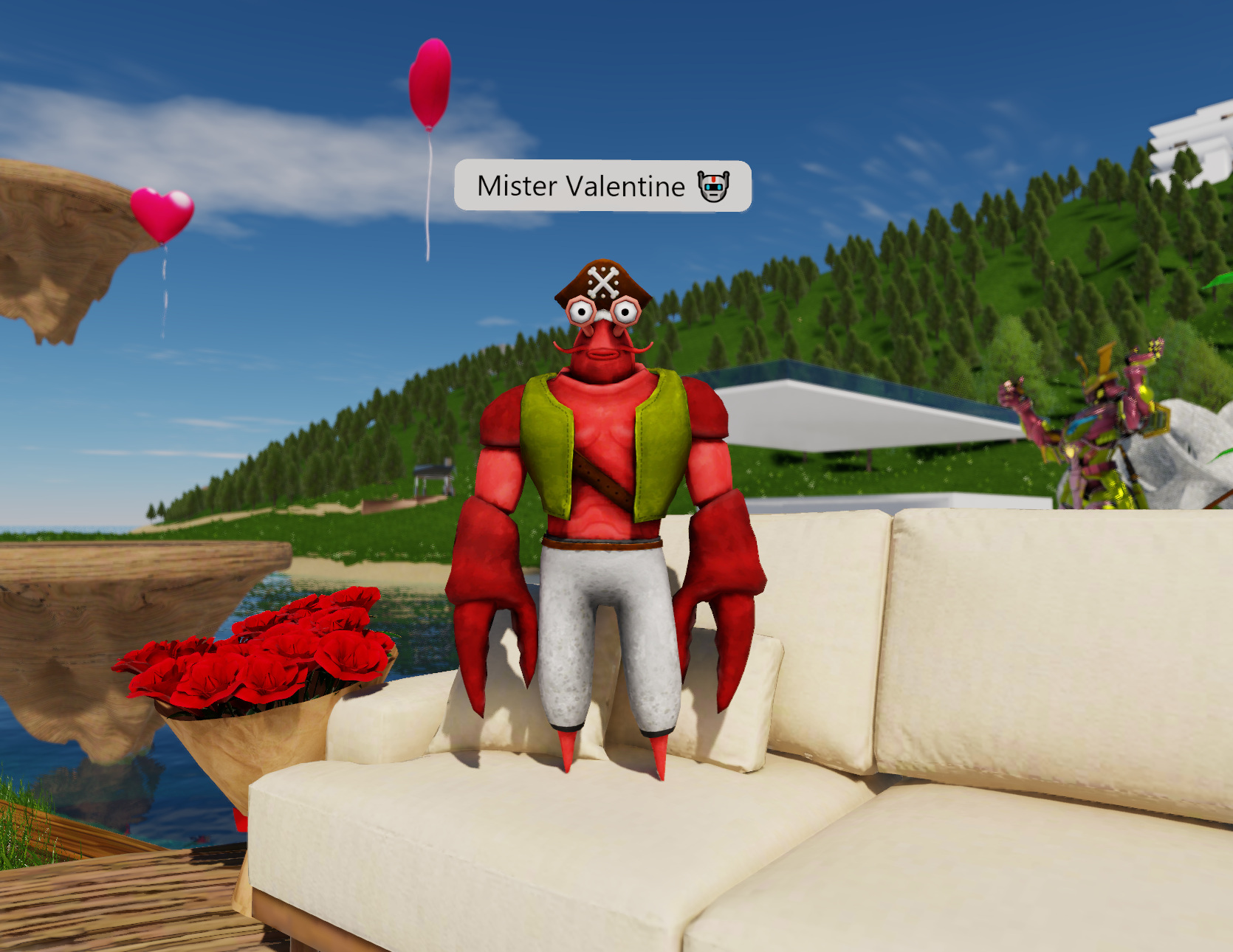
Chatbots are created on the Substrata website.
First, you must have created and be logged in to your Substrata account on the Substrata website.
Next, go to your user account page. (The link to this is at the top right of all substrata web pages). Scroll down until you reach the 'ChatBots' section, where there is a link to Create a new Chatbot.
There are two pieces of information required on the 'New ChatBot' page. The first is the world to create the chatbot in. Leave this field empty to create the chatbot in the main (default) world. If you want to create a chatbot in one of your personal worlds, you can enter the name of your personal world here.
The position is where the chatbot will stand when created. If you are creating in the main world, then this position must be in one of your land parcels.
TIP: to find a good position, use the Substrata client to walk around, then when you have found a good spot, copy the coordinates from the URL. Don't worry if the position is not perfect, you can tweak it later.
Once you have entered that information, click Create ChatBot. If the position is valid, you will be taken to the 'Edit ChatBot' page.
Your chatbot should now appear in the Substrata world you chose.
This is appended to the built-in prompt part to form the whole prompt for the LLM conversation.
You can tell the chatbot what is around them, what their purpose is, and how to speak. For example:
You are a pirate, standing on John's pirate ship. Your purpose is to greet visitors and invite them to join you on the pirate ship. You will speak like a pirate.
Alternatively:You are a friendly shopkeeper at Sam's fishing shop. Your purpose is to greet visitors and sell your wares. You will speak in a friendly and jovial tone.
The prompt is limited to 10,000 characters. Tool info functions allow the chatbot to ingest extra information when it thinks it needs it.
For example, if you are making a bot to help users with Lua scripting, then you could create a function called get_lua_info, with description Call this function to get information about the Lua scripting language. Then in the Result Content field you can enter a large amount of text about Lua. (up to 100,000 chars).
In this way the chatbot can fetch information about a topic when it needs it, and not earlier, keeping LLM inference speed and costs low.
Chatbots can use custom 3d models for their avatars, just like users in Substrata. To set a custom avatar model for your chatbot, first set it for you as the user, with the Avatar Settings dialog (Avatar > Avatar Settings) in the native client, or the Avatar Settings button near the top-left of the screen in the web client.
Once you are happy with the 3d model on your avatar, just click the Copy user's current avatar settings for ChatBot button to apply it to the chatbot as well.
< Home